


工作表变更事件,用于在另一张工作表中的另一张表里识别最后一个空行,并填入查找得到的数据
我使用VBA还不到两周,是在这个论坛的新手。我使用Office 365。
我的目标是在表格Table1的列 “T-0 Date” 中的日期被修改时识别,如果确实发生变化,执行以下操作:
-
将下列数据输入到表 "T0Change" 的最后一个空行
-
将新更改的T-0 Date输入到表 "T0Change" 的列 "T-0 Date" 中,并
- 将此次变更发生的日期输入到列 "When T-0 date changed" 中
- 从 "Table1" 查找在 "T-0 Date" 更改时的对应经度,并将其输入到表 "T0Change" 的列 "longitude"
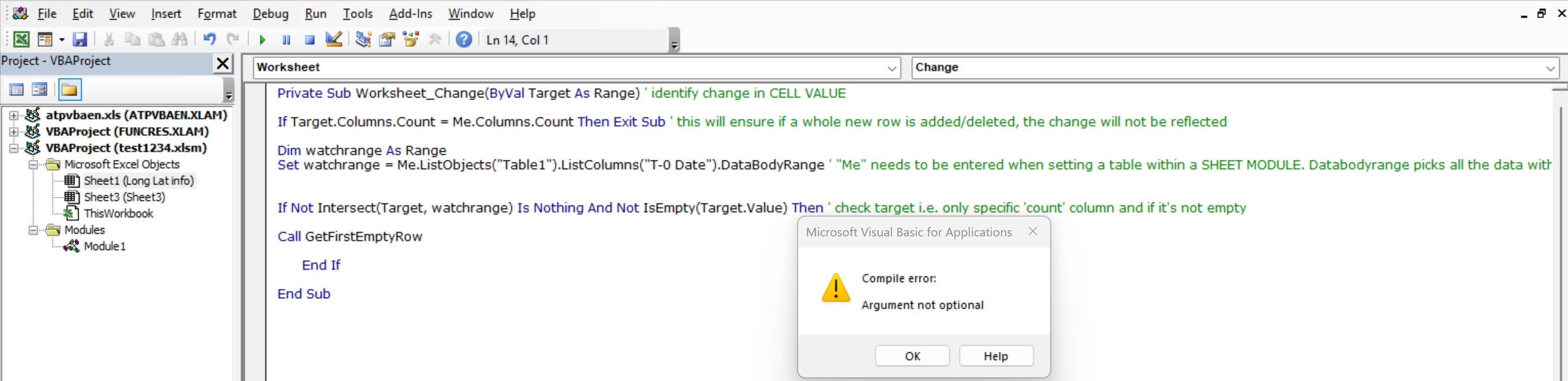
在继续解决上述子步骤之前,我目前卡在让宏定位表 "T0Change" 的最后一个空行上(附带错误)。
我已经在手动进行更改的工作表中输入了以下代码
Private Sub Worksheet_Change(ByVal Target As Range) ' identify change in CELL VALUE

If Target.Columns.Count = Me.Columns.Count Then Exit Sub

Dim watchrange As Range
Set watchrange = Me.ListObjects("Table1").ListColumns("T-0 Date").DataBodyRange


If Not Intersect(Target, watchrange) Is Nothing And Not IsEmpty(Target.Value) Then

Call getfirstemptyrow

      End If

End Sub
我已经在一个模块中输入了以下代码
Function GetFirstEmptyRow(tableName As String) As Long
    Dim lo As ListObject
    Set lo = Worksheets("Sheet3").ListObjects("T0Change")

    ' If the table is brand new and empty
    If lo.DataBodyRange Is Nothing Then
        GetFirstEmptyRow = lo.HeaderRowRange.Row + 1
        Exit Function
    End If

    ' Use Find to get the last truly non-blank row in the table range
    Dim lastCell As Range
    Set lastCell = lo.Range.Find(What:="*", _
                                 SearchOrder:=xlByRows, _
                                 SearchDirection:=xlPrevious, _
                                 LookIn:=xlValues)

    If Not lastCell Is Nothing Then
        GetFirstEmptyRow = lastCell.Row + 1
    End If
End Function
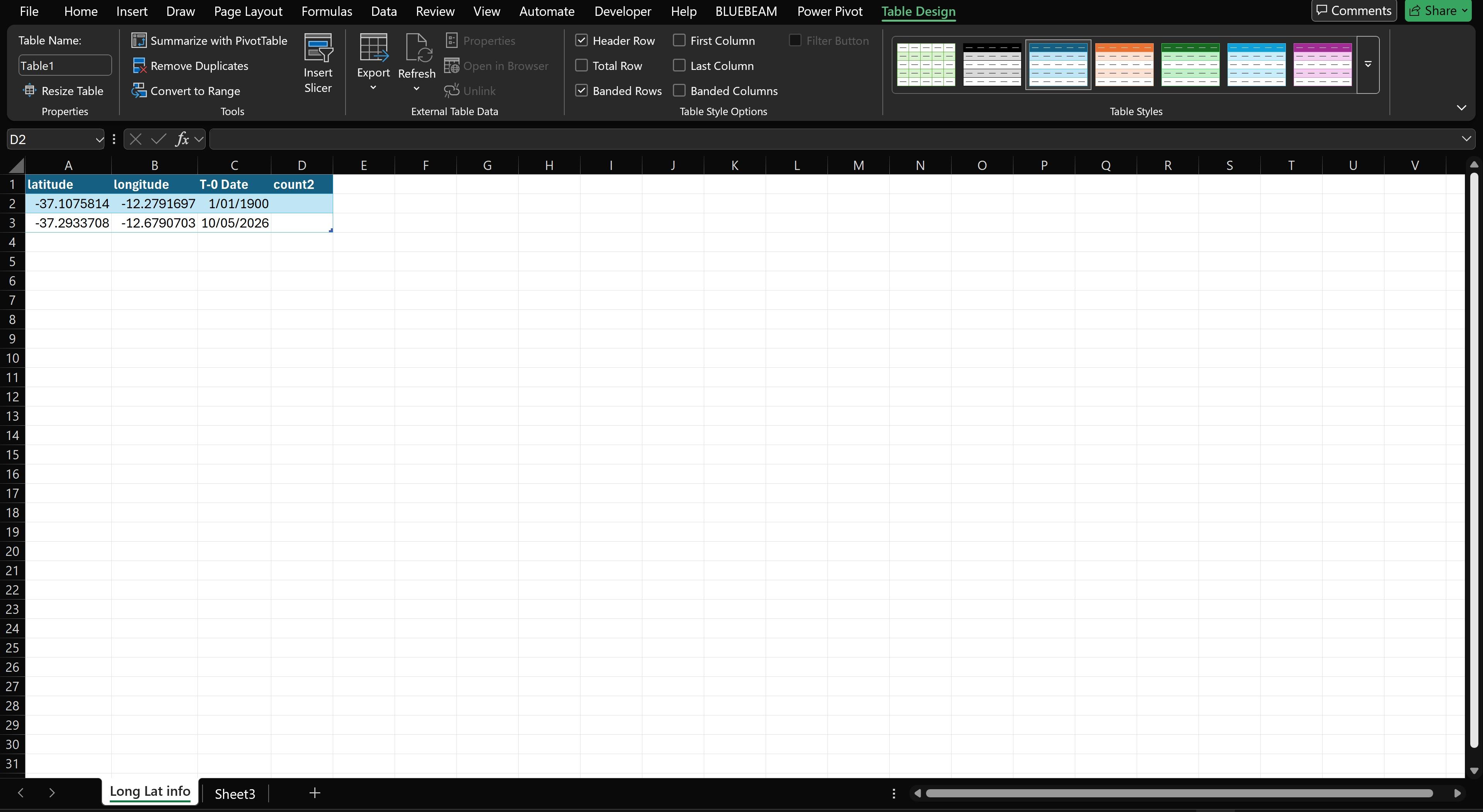
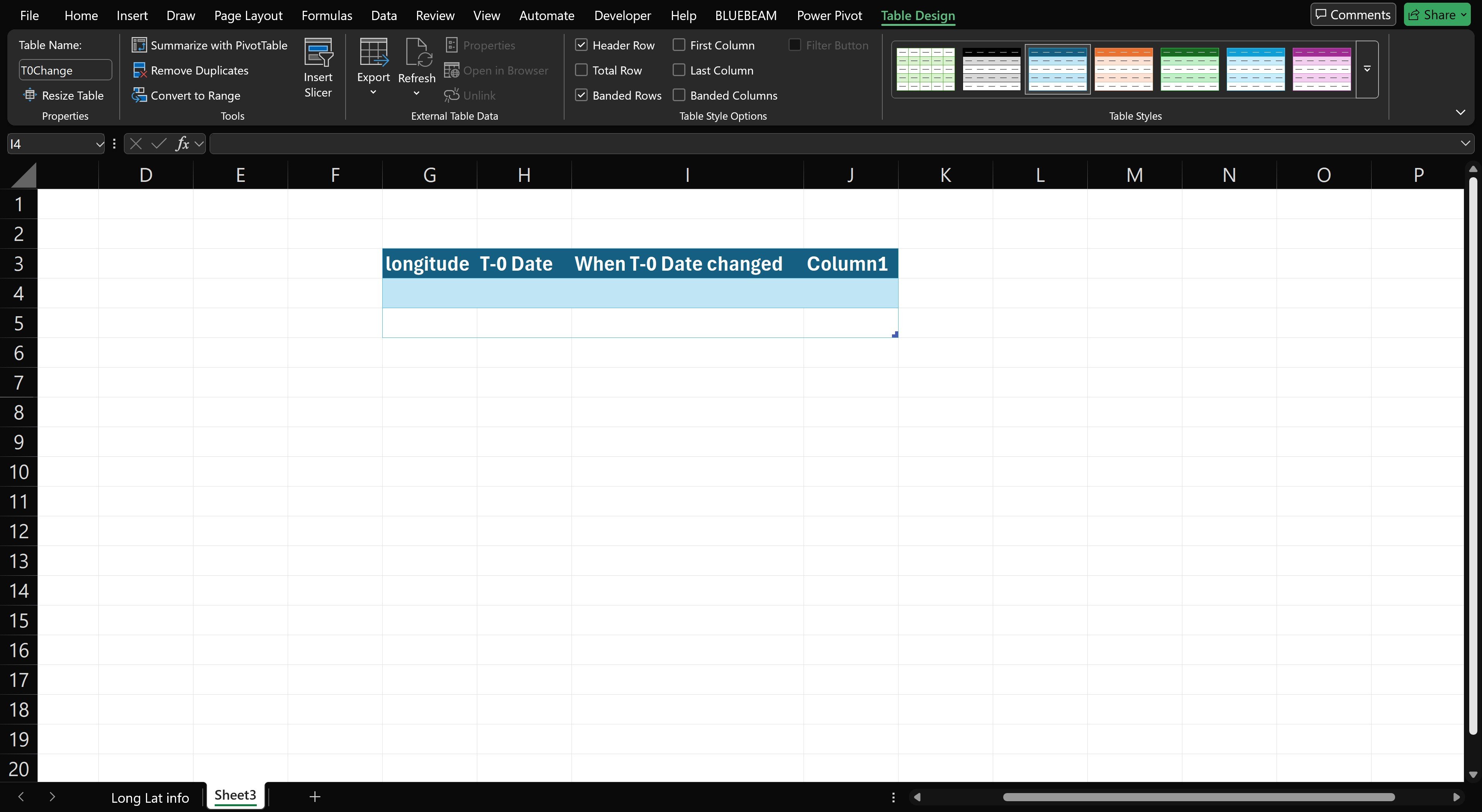
供参考,我故意把 "T0Change" 表放在不是从常规的A1单元格开始的位置。感谢各位的帮助。
解决方案
表格对表的变更
- 处理Excel表格时,
- 不需要涉及 工作表 的行或列,
- 你可以通过新增一行来引用“第一个可用”的行。
Sheet Module, e.g. Sheet1(不是 Module1)
Private Sub Worksheet_Change(ByVal Target As Range)

    ' Constants

    Const S_TABLE_NAME As String = "Table1"
    Const S_CHANGE_COLUMN_NAME As String = "T-0 Date"
    Const S_LONGITUDE_COLUMN_NAME As String = "Longitude"

    Const D_SHEET_NAME As String = "Sheet3"
    Const D_TABLE_NAME As String = "T0Change"
    Const D_DATE_STAMP_COLUMN_NAME As String = "When T-0 date changed"
    Const D_CHANGE_COLUMN_NAME As String = "T-0 Date"
    Const D_LONGITUDE_COLUMN_NAME As String = "Longitude"

    Const MAX_CHANGED_CELLS_COUNT As Long = 100

    ' Stamp

    Dim Stamp As Date: Stamp = Date ' i.e. Today

    ' Source

    Dim watchTable As ListObject: Set watchTable = Me.ListObjects(S_TABLE_NAME)
    Dim watchRange As Range: Set watchRange = _
        watchTable.ListColumns(S_CHANGE_COLUMN_NAME).DataBodyRange

    ' Reference the changed cells.
    Dim changedCells As Range: Set changedCells = Intersect(watchRange, Target)
    If changedCells Is Nothing Then Exit Sub
    If changedCells.Cells.Count > MAX_CHANGED_CELLS_COUNT Then Exit Sub

    ' Reference the table rows of the changed cells.
    Dim changedRows As Range: Set changedRows = _
        Intersect(watchTable.DataBodyRange, changedCells.EntireRow)

    ' Retrieve the source column indices.
    Dim sChangeColumn As Long, sLongitudeColumn As Long
    With watchTable
        sChangeColumn = .ListColumns(S_CHANGE_COLUMN_NAME).Index
        sLongitudeColumn = .ListColumns(S_LONGITUDE_COLUMN_NAME).Index
    End With

    ' Using the changed rows and the column indices, you can easily reference
    ' the required cells by using the 'Cells' property (see 'crrg' below).
    ' No need to use worksheet rows or columns.

    ' Destination

    Dim destTable As ListObject: Set destTable = _
        Me.Parent.Sheets(D_SHEET_NAME).ListObjects(D_TABLE_NAME)

    ' Reference the first available row range.
    Dim drrg As Range ' (current destination row range)
    If destTable.ListRows.Count = 0 Then ' empty table
        Set drrg = destTable.HeaderRowRange.Offset(1)
    Else
        Set drrg = destTable.ListRows.Add.Range
    End If

    ' Retrieve the destination column indices.
    Dim dStampColumn As Long, dChangeColumn As Long, dLongitudeColumn As Long
    With destTable
        dStampColumn = .ListColumns(D_DATE_STAMP_COLUMN_NAME).Index
        dChangeColumn = .ListColumns(D_CHANGE_COLUMN_NAME).Index
        dLongitudeColumn = .ListColumns(D_LONGITUDE_COLUMN_NAME).Index
    End With

    ' Using the current row and the column indices, you can easily reference
    ' the required cells by using the 'Cells' property. Use the 'Offset'
    ' property to reference the next row on each iteration (see 'drrg' below).
    ' No need to use worksheet rows or columns.

    ' Copy

    Dim crrg As Range ' current source (changed) row range
    For Each crrg In changedRows.Rows
        drrg.Cells(dStampColumn).Value = Stamp
        drrg.Cells(dChangeColumn).Value = crrg.Cells(sChangeColumn).Value
        drrg.Cells(dLongitudeColumn).Value = crrg.Cells(sLongitudeColumn).Value
        Set drrg = drrg.Offset(1) ' next destination row range
    Next crrg

End Sub
站内所有文章版权归属LeftHeroAI导航站,无授权禁止任何主体转载、抄袭、复制内容,亦不得私自架设镜像站点。一经侵权,本站将通过法律途径追责。
相关文章






汇集全球数千款 AI 工具,每日持续更新,配套 AI 开发学习资源,轻松用 AI 提升工作效率。快捷键 Ctrl+D/⌘+D 一键收藏本站。