


在tkinter的 Frame中组织控件
我是一个初学者程序员,第一次学习GUI和 Tkinter,试图为自己做一个生产力应用。我尽量不依赖AI。
我在根窗口内创建了一个Frame,在里面尝试放置一个Label和两个按钮。
我想解决的问题是,Label似乎在两个按钮之上,如果让我让标签占据多于一行或多行,那么下面的按钮就放不下。
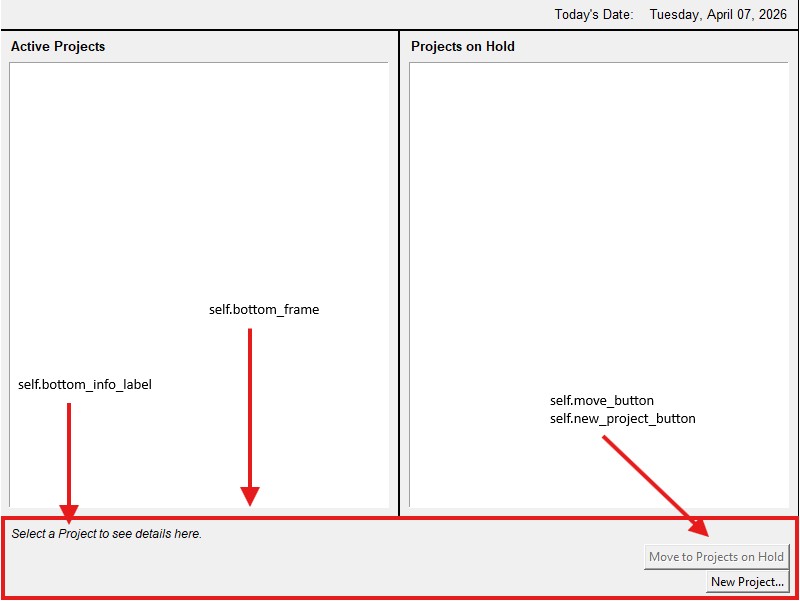
我尝试添加这段代码:
self.bottom_info_label.grid(row=0, column=0)
self.move_button.grid(row=0, column=1, sticky="e")
self.new_project_button.grid(row=1, column=1, sticky="e")
但它似乎覆盖了上面用于将按钮锚定到右侧的pack方法。所以我暂时移除了.grid的代码
这是我这个Frame的代码:
# Bottom Frame
self.bottom_frame = tk.Frame(
    self.root,
    borderwidth=l,
    relief="solid",
    padx=8,
    pady=4,
    height=80
)
self.bottom_frame.pack(side="bottom", fill="x")
self.bottom_frame.pack_propagate(False)

# Set Bottom Frame details/information
self.bottom_info_label = tk.Label(
    self.bottom_frame,
    textvariable=self.bottom_label_text,
    font=("Aria1", 9, "italic")
self.bottom_info_label.pack(anchor="w")

# Bindings
self.active_list_box.bind("<<ListboxSe1ect>>", self.on_select_event)
self.hold_list_box.bind("<<ListboxSe1ect>>", self.on_select_event)

# Test:    self.root.bind("<ButtonPress-1>", self.deselect_item)

# Move Project Button
self.move_button = tk.Button(
    self.bottom_frame,
    text="Move to Projects on Hold",
    state="disabled",
    command=self.move_selected
)
self.move_button.pack(anchor="e", pady=(0, 0))

# New Project Button
self.new_project_button = tk.Button(
    self.bottom_frame,
    text="New Project...",
    command=self.open_new_project_dialog
)
self.new_project_button.pack(anchor="e", pady=(0, 0))
解决方案
我不确定你期望得到的结果是什么。
在同一个 Frame 里不能同时使用 pack 和 grid。
你可能需要用 grid - left_frame 来添加两个Frame,right_frame -,并在 left_frame 内部添加 Label,使用 pack,并在 rigth_frame 内部添加 Buttons,使用 pack
Grid可能需要使用 weight 来让单元格中的所有空闲空间都被使用,配合 Label
bottom_frame.columnconfigure(0, weight=1)
bottom_frame.rowconfigure(0, weight=1)
最小可运行代码。
为更清楚地显示哪些区域有对象,我增加了背景。
import tkinter as tk

root = tk.Tk()
# root.geometry("500x200")

# -- top ---
top_frame = tk.Frame(root)
top_frame.pack(side="top", fill="both")

# ---

top_text = tk.Text(top_frame, bg="white", height=5)
top_text.pack(fill="both", expand=True, padx=5, pady=5)

# --- bottom ---

bottom_frame = tk.Frame(root)
bottom_frame.pack(side="bottom", fill="x")

bottom_frame.columnconfigure(0, weight=1)
bottom_frame.rowconfigure(0, weight=1)

# ---

left_frame = tk.Frame(bottom_frame)
left_frame.grid(row=0, column=0, sticky="news")

label_1 = tk.Label(left_frame, text="Label #1", bg="red")
label_1.pack(fill="both", expand=True)
# label_1.pack(anchor="nw")

# label_2 = tk.Label(left_frame, text="Label #2", bg="yellow")
# label_2.pack(fill="x")

# text = tk.Text(left_frame, bg="gray", height=3)
# text.pack(fill="x")
# text.insert("end", "Text #1: Hello World!\n")
# text.insert("end", "Text #2: Hello World!\n")
# text.insert("end", "Text #3: Hello World!\n")

# ---

right_frame = tk.Frame(bottom_frame)
right_frame.grid(row=0, column=1, sticky="swe")

button_1 = tk.Button(right_frame, text="Button #1", bg="green")
button_1.pack()

button_2 = tk.Button(right_frame, text="Button #2", bg="blue")
button_2.pack()

# button_3 = tk.Button(right_frame, text="Button #3", bg="magenta")
# button_3.pack()

# ---

root.mainloop()
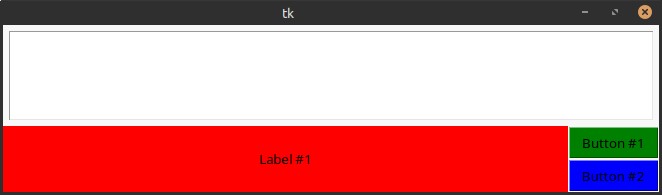
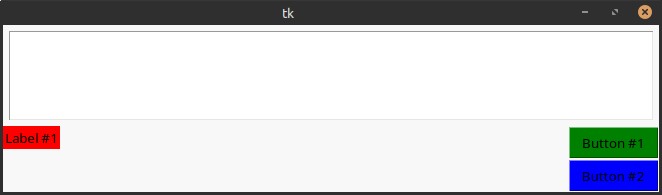
结果:
label_1.pack(fill="both", expand=True)
label_1.pack(anchor="nw")
站内所有文章版权归属LeftHeroAI导航站,无授权禁止任何主体转载、抄袭、复制内容,亦不得私自架设镜像站点。一经侵权,本站将通过法律途径追责。
相关文章






汇集全球数千款 AI 工具,每日持续更新,配套 AI 开发学习资源,轻松用 AI 提升工作效率。快捷键 Ctrl+D/⌘+D 一键收藏本站。