

Geometry Dash Vision Bot的跳跃时机不对
在这个项目中,我的目标是创建一个能在Geometry Dash中不需要重新启动就能玩的机器人。我将一步步来,第一步让我的机器人尝试跳过Stereo Madness中的第一个尖刺。我的机器人使用的方法是拍摄两张照片,间隔100毫秒,以观察尖刺移动了多少,从而计算玩家的速度。然后,我让机器人拍摄第三张照片,用来检查玩家与尖刺之间的距离,进而根据速度计算跳跃所需的时间。它还会对延迟进行补偿。
然而这种方法并不能奏效,我的输出如下:
PS C:\Users\user\GeoBot> python geodash.py
Waiting for loading
[(918, 63, 93, 87), (1024, 62, 94, 88)]
633.5490648445683
[(8, 156, 1184, 44), (8, 150, 1184, 2), (945, 77, 40, 57), (221, 68, 79, 79), (1194, 0, 6, 200), (0, 0, 6, 200)]
[(945, 77, 40, 57), (221, 68, 79, 79)]
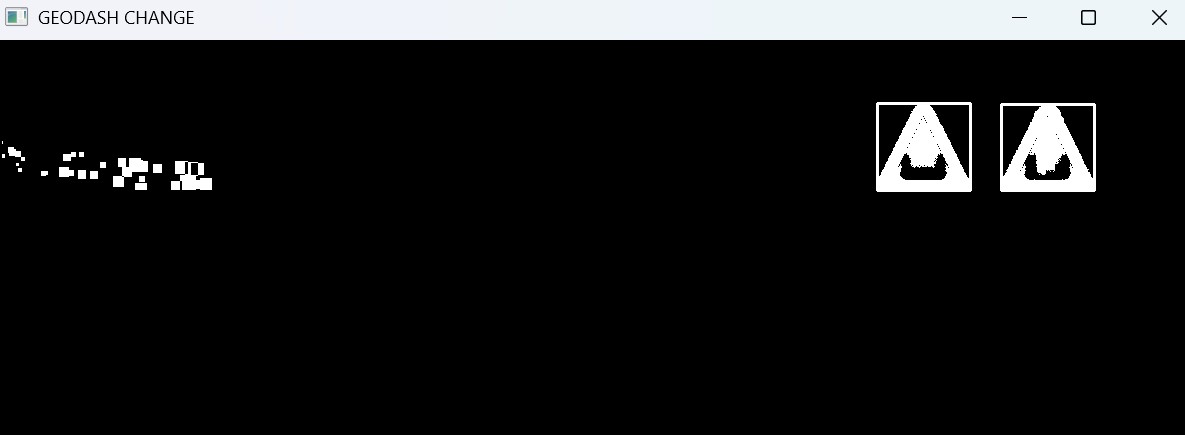
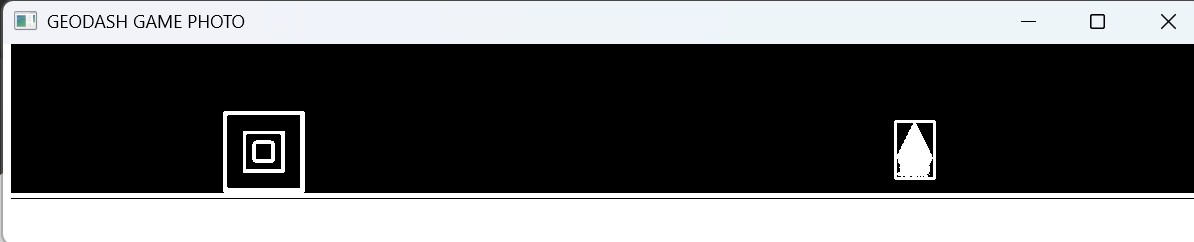
以上为图片链接输出
在我尝试时,它显示的数值很低,大约每秒600到 700像素。然而,在实际运行时,它并没有跳过尖刺。
速度的计算是通过比较两张相差100毫秒的图片之间的差异,然后再将该差值除以延迟(lag)来得到。
我尝试了多种方法来修复这个bug。首先,我确保打印轮廓,以查看它是否能检测到正确的轮廓,确保不会把任何不稳定的噪声误认为速度或距离计算的一部分。正如输出所示,轮廓是正常且准确的。图片上的白色框标出的是关键部分。
这完全没有带来任何区别。随后,我又确认延迟是否被修改,结果同样没有影响。最后,我发现速度方面有问题。
我的问题是,速度计算到底哪里出了问题,如何在保持相同算法的前提下修复它?
from selenium import webdriver
from selenium.webdriver.support.ui import WebDriverWait
from selenium.webdriver.common.by import By
from selenium.webdriver.common.action_chains import ActionChains
from selenium.webdriver.support import expected_conditions as EC
from selenium.webdriver.chrome.options import Options
import time
import cv2
import numpy as np
from pynput.keyboard import Controller, Key
import mss

# --- Browser Setup ---
chrome_options = Options()
chrome_options.add_argument("--window-size=1200,1000")
chrome_options.add_argument("--force-device-scale-factor=1")
driver = webdriver.Chrome(options=chrome_options)

# --- Load Game ---
driver.get("https://lolygames.github.io/gd-lit/")
print("Waiting for loading")
time.sleep(8)

# --- Click Canvas to Focus, Then Click to Start ---
canvas = driver.find_element(By.ID, "#canvas")
actions = ActionChains(driver)
actions.move_to_element_with_offset(canvas, 0, 0).click().perform()
time.sleep(0.5)
actions.move_to_element_with_offset(canvas, 0, -100).click().perform()
time.sleep(2.5)

with mss.mss() as sct:
    screen_region = {"top": 40, "left": 10, "width": 1200, "height": 1000}

    # --- Capture Two Frames 0.3s Apart for Speed Calculation ---
    grab_start = time.time()
    frame_1_raw = np.array(sct.grab(screen_region))
    time.sleep(0.1)
    frame_2_raw = np.array(sct.grab(screen_region))
    grab_elapsed = time.time() - grab_start

    # --- Crop to Game Play Area ---
    frame_1_crop = frame_1_raw[600:1000, 0:1200]
    frame_2_crop = frame_2_raw[600:1000, 0:1200]

    # --- Diff the Two Frames to Detect Movement ---
    diff = cv2.absdiff(frame_1_crop, frame_2_crop)
    diff_gray = cv2.cvtColor(diff, cv2.COLOR_BGR2GRAY)
    ret, diff_thresh = cv2.threshold(diff_gray, 30, 255, cv2.THRESH_BINARY)

    # --- Find Bounding Rects of Moving Objects ---
    contours, hierarchy = cv2.findContours(diff_thresh, cv2.RETR_EXTERNAL, cv2.CHAIN_APPROX_SIMPLE)
    moving_rects = []
    for cnt in contours:
        x, y, w, h = cv2.boundingRect(cnt)
        if w >= 30 and h >= 30:
            moving_rects.append((x, y, w, h))
            cv2.rectangle(diff_thresh, (x, y), (x + w, y + h), (255, 0, 0), 2)

    print(moving_rects)

    # --- Calculate Game Speed from Object Displacement ---
    object_displacement = abs(moving_rects[0][0] - moving_rects[1][0])
    game_speed = object_displacement / grab_elapsed
    print(game_speed)


    # --- Capture Third Frame to Detect Player + Obstacle Positions ---
    detect_start = time.time()
    frame_3_raw = np.array(sct.grab(screen_region))
    frame_3_gray = cv2.cvtColor(frame_3_raw, cv2.COLOR_BGR2GRAY)
    ret, frame_3_thresh = cv2.threshold(frame_3_gray, 30, 255, cv2.THRESH_BINARY_INV)

    # --- Crop Above Ground Line (Player + Obstacles Only) ---
    play_area = frame_3_thresh[600:800, :]
    contours, hierarchy = cv2.findContours(play_area, cv2.RETR_EXTERNAL, cv2.CHAIN_APPROX_SIMPLE)
    play_rects = []
    allrects=[]
    for cnt in contours:
        x, y, w, h = cv2.boundingRect(cnt)
        allrects.append((x, y, w, h))
        cv2.rectangle(play_area, (x, y), (x + w, y + h), (255, 0, 0), 2)
        if w >= 30 and h >= 30 and w<=200:
            play_rects.append((x, y, w, h))


    # --- Calculate Distance and Jump at the Right Time ---
    print(allrects)
    print(play_rects)
    try:
        player_obstacle_distance = abs(play_rects[0][0] - play_rects[1][0])
        processing_time = time.time() - detect_start
        jump_delay = (player_obstacle_distance / game_speed) - processing_time
        print(jump_delay)
        time.sleep(max(0, jump_delay))
        keyboard = Controller()
        keyboard.press(Key.space)
        keyboard.release(Key.space)
    except:
        print(play_rects)

# --- Show Debug Windows ---
cv2.imshow('GEODASH CHANGE', diff_thresh)
cv2.imshow('GEODASH GAME PHOTO', play_area)

cv2.waitKey(0)
cv2.destroyAllWindows()
解决方案
你的代码存在多处问题,我将简要说明如下:
首先,你对 player_obstacle_distance 的计算就不对。你在尝试跳跃之前,玩家已经撞到了障碍物。要得到正确的距离,需要玩家的右边缘和障碍物的左边缘。要识别玩家和障碍物,需先对矩形进行排序:
# Sort the rectangles by their x-coordinate to identify player and obstacle
play_rects.sort(key=lambda r: r[0])
player_obstacle_distance = play_rects[1][0] - (play_rects[0][0] + play_rects[0][2])
其次,你需要在撞击障碍物之前就跳跃。这基于跳跃的持续时间/腾空距离,例如 JUMP_EARLY = 200 # pixels,因此你的延迟计算应变为:
# Jump early enough to be at height when at the obstacle
jump_position   = player_obstacle_distance - JUMP_EARLY
processing_time = time.time() - detect_start
jump_delay      = (jump_position / game_speed) - processing_time

time.sleep(max(0, jump_delay))
最后,实时发送按键并不容易。我更倾向于 pyautogui 而非 pynput,因为它有一个 容错标志 可以关闭,从而实现无延迟地发送事件。如果你 import pyautogui,你可以用下面的代码替换你的按键发送块:
pyautogui.FAILSAFE = False  # Disable pyautogui fail-safe to avoid delay
pyautogui.keyDown('space')  # Press space to jump
pyautogui.keyUp('space')    # Release space
pyautogui.FAILSAFE = True
现在你的玩家应该能够越过第一个障碍。
不过,要实现整个游戏的自动化还有很多工作要做。我建议先识别并分割游戏帧中的对象,这样你就能清楚地了解场景(包括玩家、地形高度、尖刺、缝隙等)。这会是一个可以一块一块解决的有趣任务。
相关文章